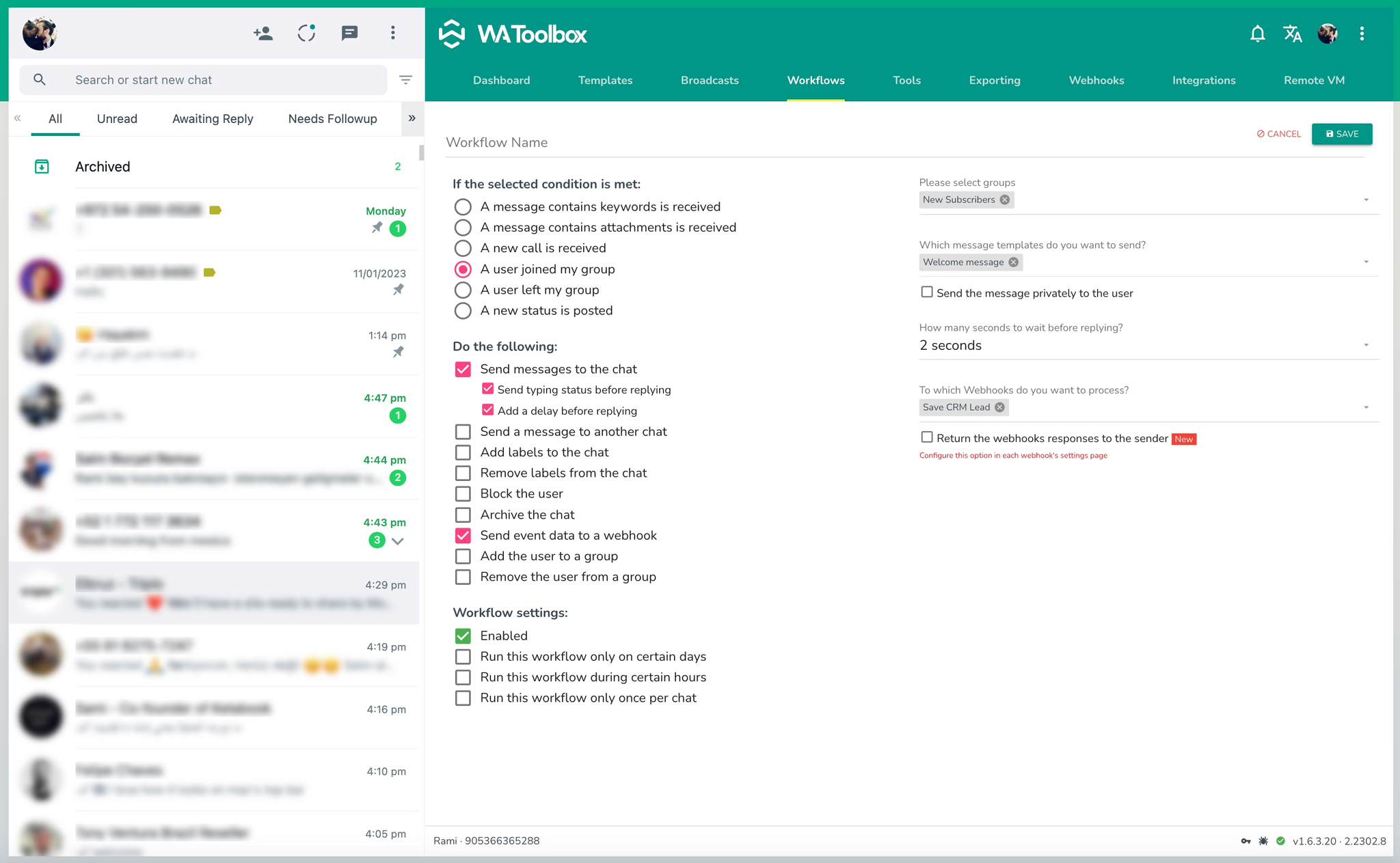
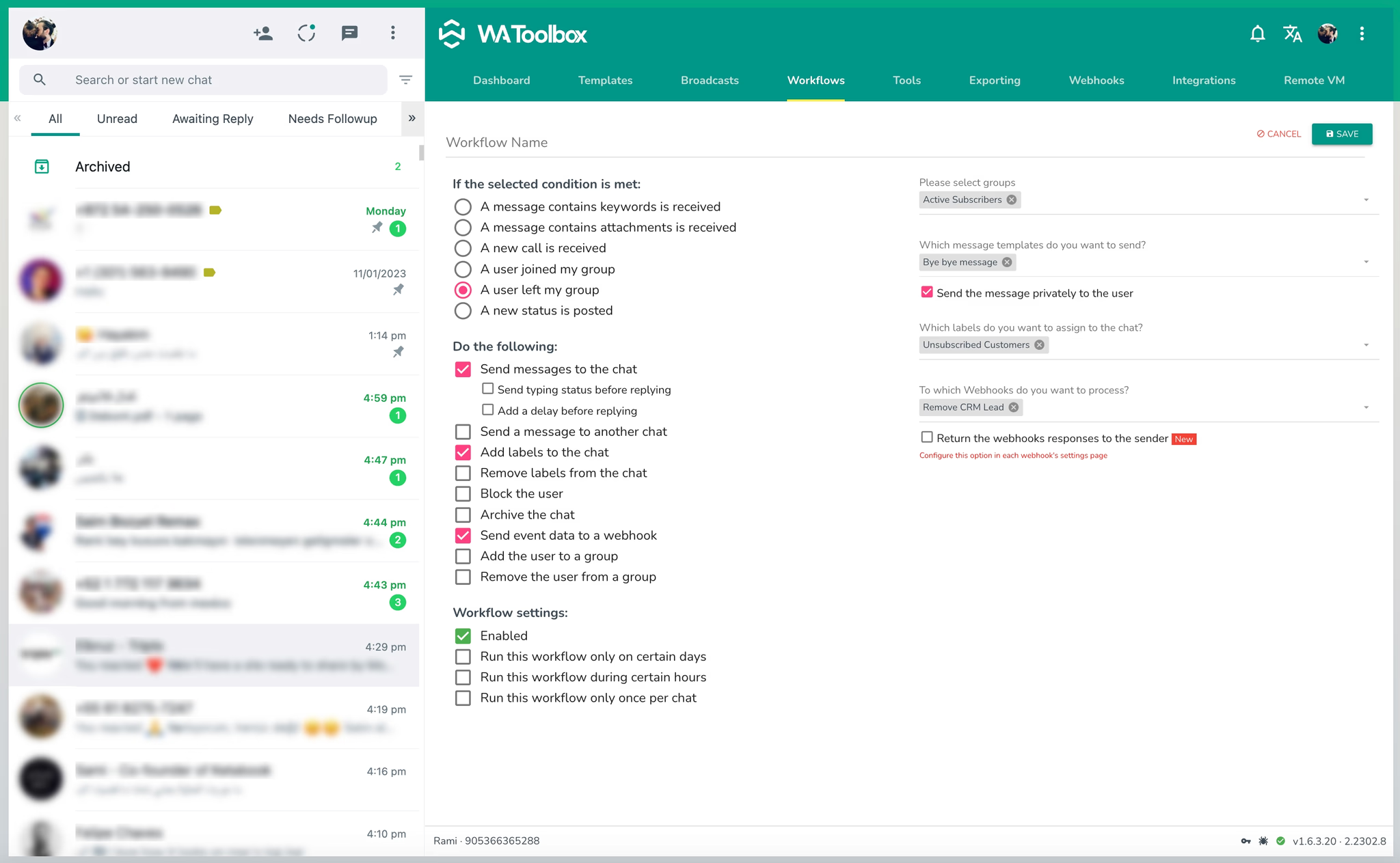
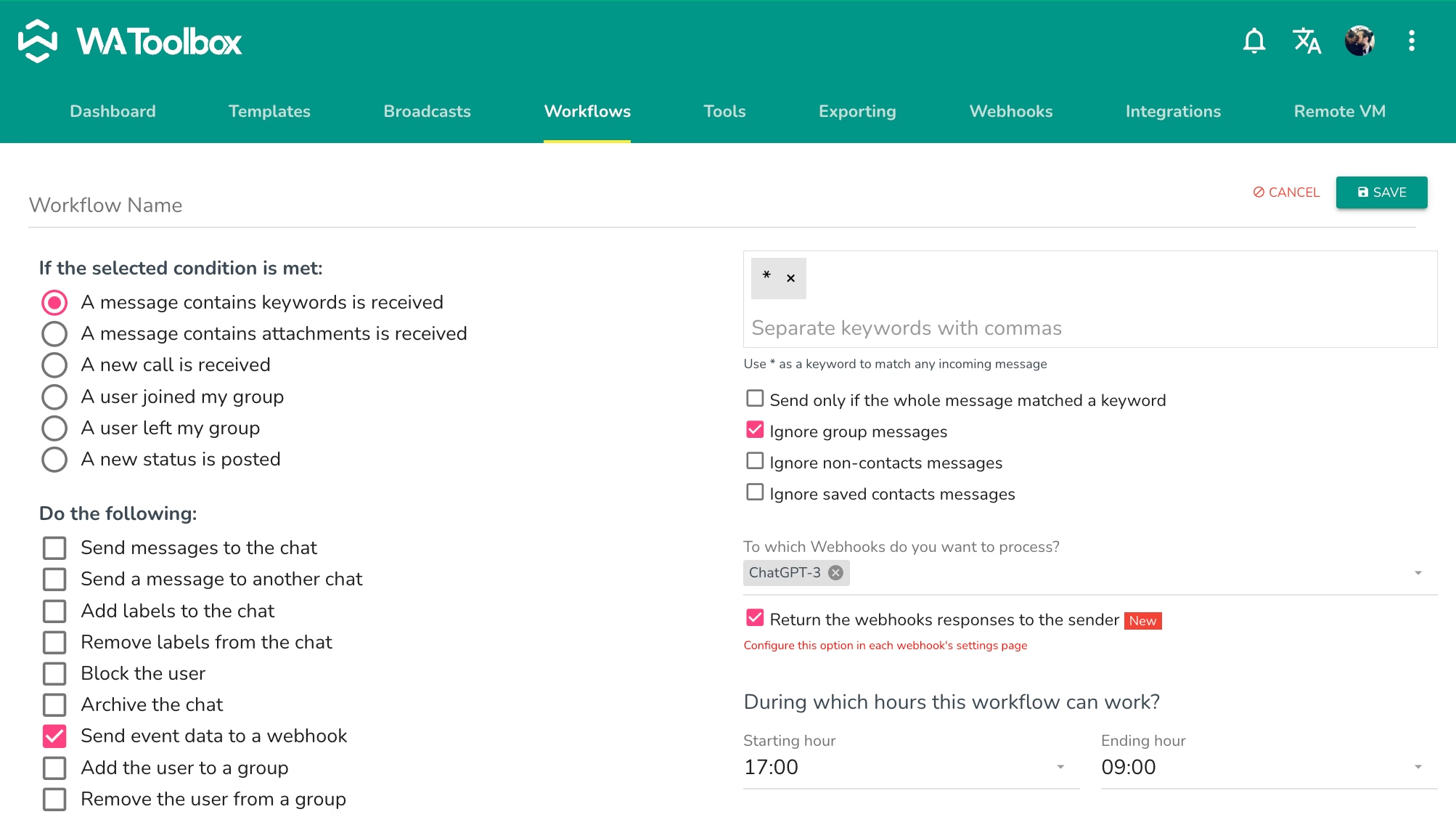
With WhatsApp Toolbox’s Workflows, you can create automated responses and actions based on customer events, improving engagement and response times. WhatsApp Toolbox currently supports 6 event triggers and 9 actions, giving you versatile options for WhatsApp automation.
Event Triggers for Workflow Automation
WhatsApp Toolbox listens for the following event types to initiate actions:
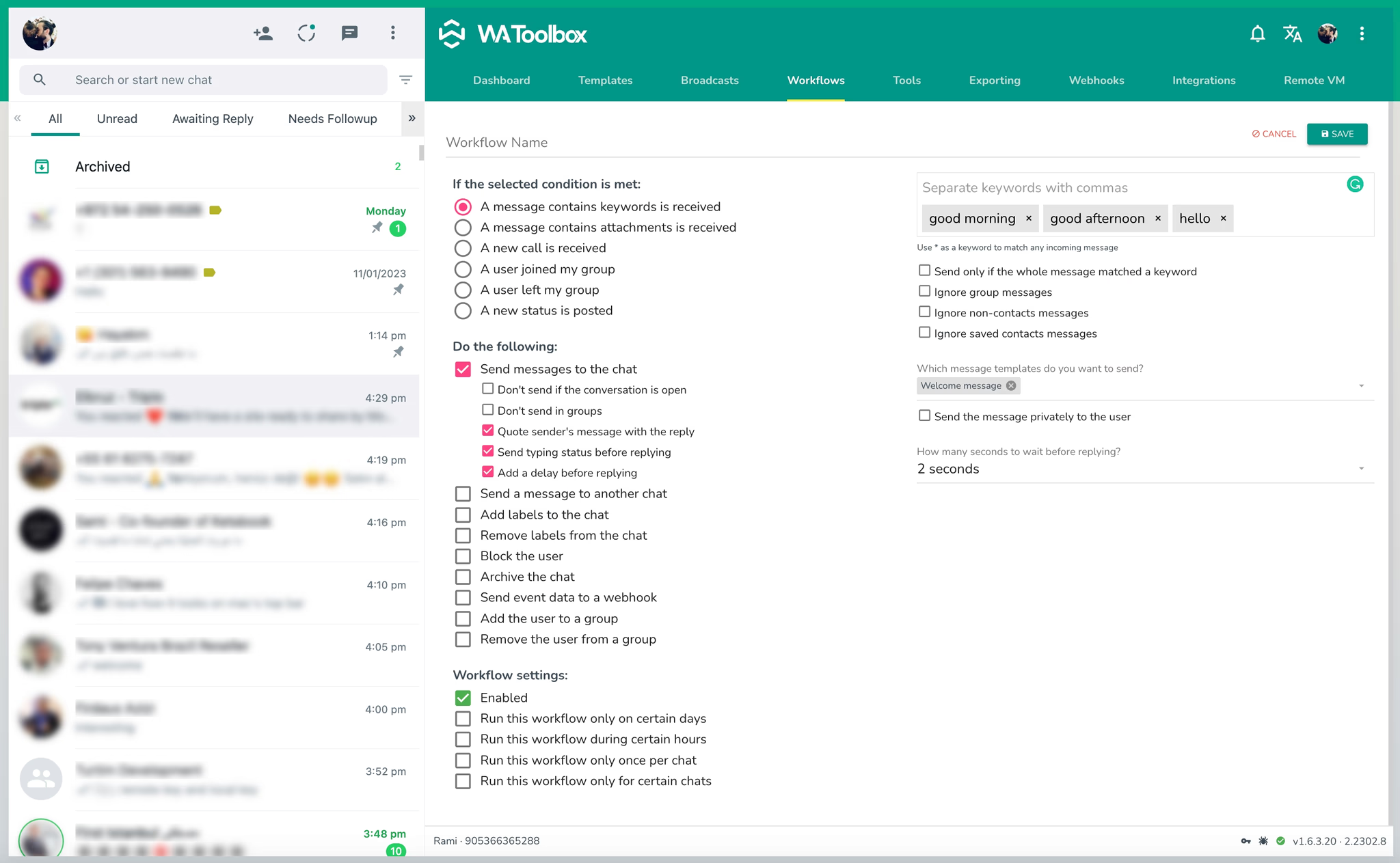
1. Keyword in Message Detects keywords within messages to trigger specific responses. Perfect for anticipating customer inquiries.
2. Message with Attachments
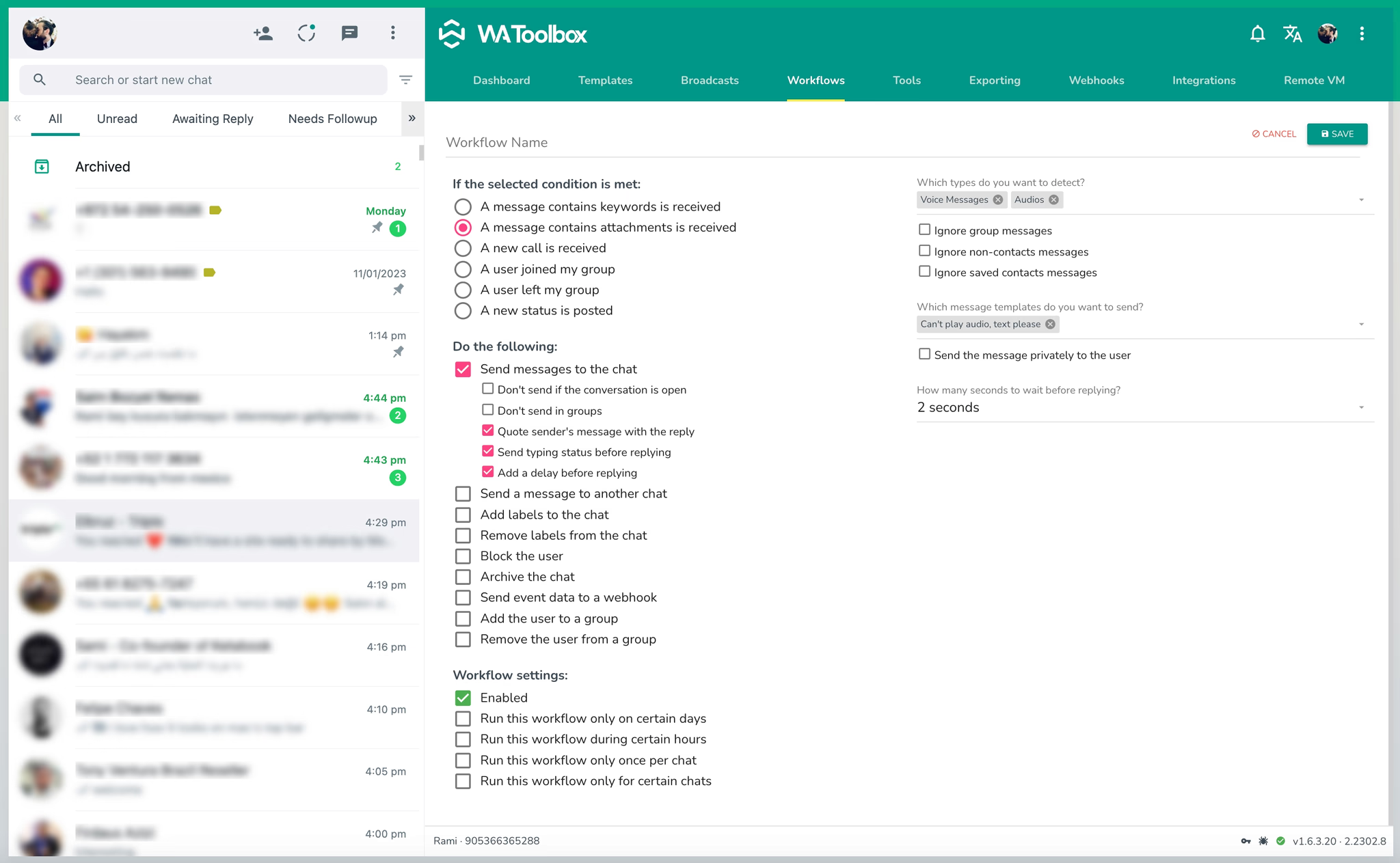
Triggers an action when attachments are sent, allowing you to provide tailored instructions (e.g., advising customers to send a text instead of a voice message).
3. New Call Received
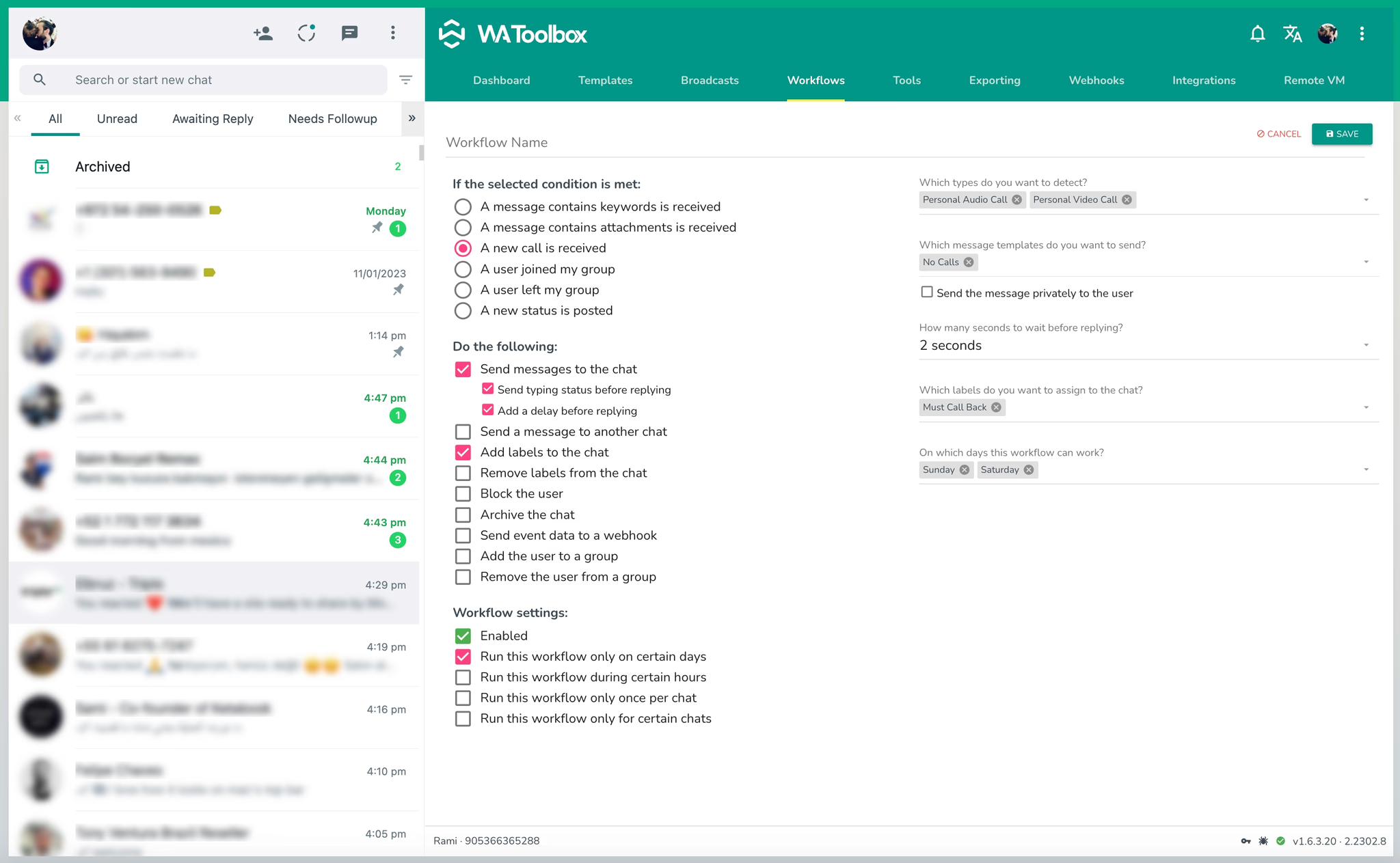
When an audio or video call is received, set custom actions (e.g., auto-responding to weekend calls with a message about business hours and applying a follow-up label).
4. Group Join Event
Welcomes new group members with automated messages or integrates new members into your CRM.
5. Group Leave Event
Sends farewell messages or updates CRM data when users leave a group.
6. New Status Update
Detects when a contact posts a new status.
Available Actions for Event Responses
WhatsApp Toolbox offers various actions to automate responses and engage customers, including:
1. Reply to Chat Send a response in the original chat with options like quoting the sender’s message, adding a delay, and sending a typing status.
2. Forward Message to Another Chat Redirect inquiries to a teammate by sending them the message content.
3. Add Labels to Chat Apply WhatsApp Business labels to categorize conversations.
4. Remove Labels from Chat Remove labels based on the workflow trigger.
5. Block User Block users who use offensive language automatically.
6. Archive Chat Archive chats after handling or based on a specific trigger.
7. Send Data to Webhook Trigger webhooks to integrate external services (e.g., ChatGPT for automated responses outside business hours).
8. Add User to Group Automatically add users to a predefined group list.
9. Remove User from Group Remove users from groups based on trigger conditions.